Dotplot
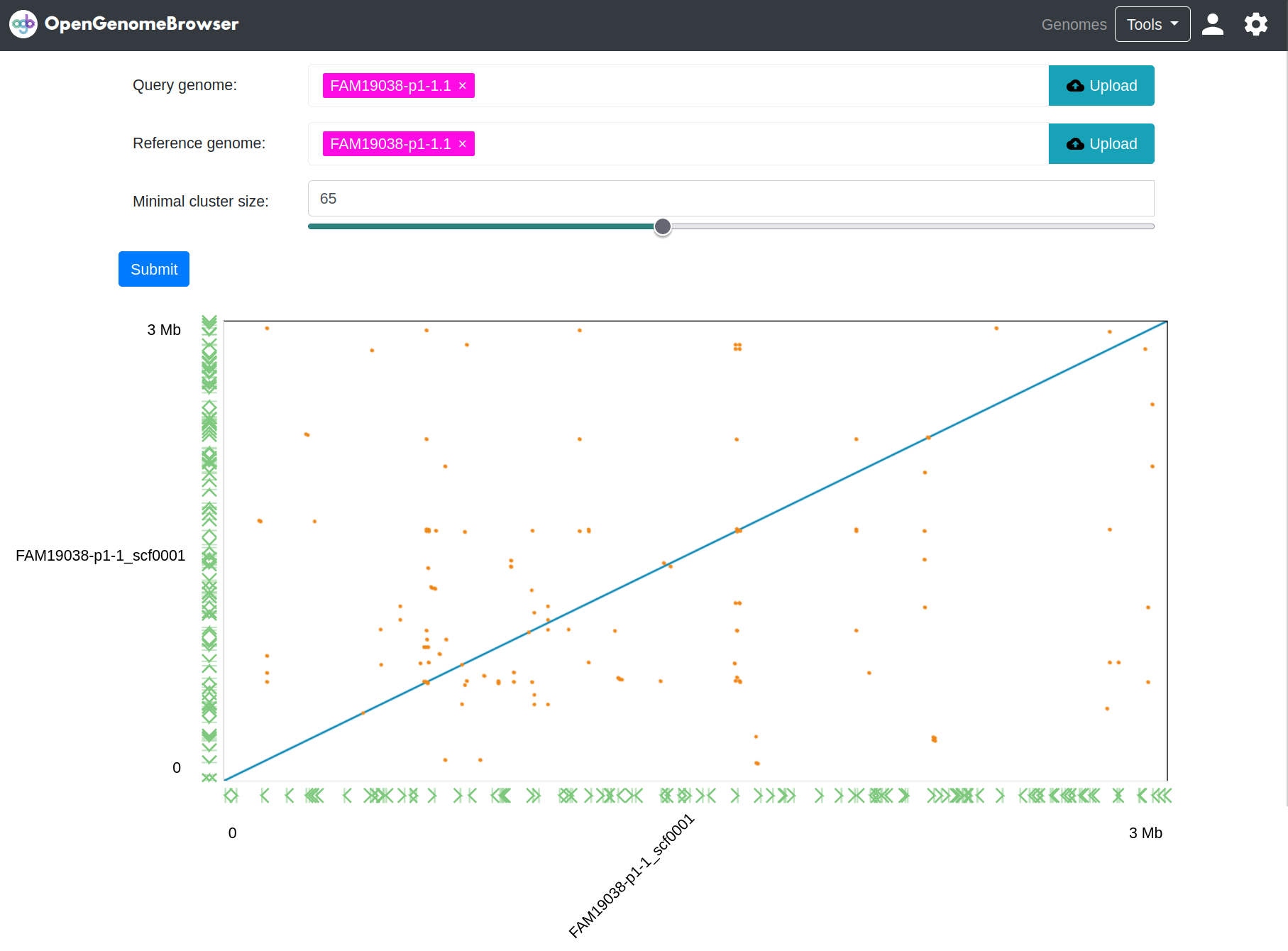
Dotplot enables users to compare two assemblies. It is useful to find similar and repetitive regions as well as structural variation.
You can upload genomes in FASTA or GenBank format. GenBank files include gene annotations that are rendered as arrows directly on the plot.
Hint: It may also be useful to align an assembly with itself!
How to get there
In the genome table, select exactly two genomes (using Shift or Ctrl) and open the
context menu using right click. Then, click on "Compare the assemblies using dotplot".
Click here for an example.
Usage
Navigation
| Action | Effect |
|---|---|
| Click and drag | Zoom in to selection |
| Double-click scaffold | Zoom to that scaffold |
| Arrow keys | Pan left / right / up / down |
+ / - |
Zoom in / out |
| Double-click (empty area) | Reset zoom |
Colors (default)
- Blue: forward alignments
- Green: reverse alignments
- Orange: repetitive alignments
Scaffold tracks along each axis are color-coded to help identify contig boundaries.
Gene annotations
When GenBank files are used, gene annotations are rendered as arrows on the scaffold tracks at the edges of the plot. Arrows are zoom-dependent; they become visible when zoomed in sufficiently. Click a gene arrow to see its locus tag and annotation.
DNA sequence display
When zoomed in far enough (approximately 8 px per base), the underlying DNA sequence is displayed directly on the alignment tracks.
Settings
Open the settings sidebar (gear icon) to adjust:
- Alignment display (colors, minimum identity, minimum length)
- Scaffold track visibility
- Gene annotation visibility
- Plot title and axis labels
How it works
Assemblies are aligned using nucmer (part of the mummer4 package). The result is visualized interactively using a Plotly-based viewer.
Parameters
The most important parameter is nucmer's Minimal cluster size. It sets the minimum length of a cluster of matches. A higher value reduces sensitivity but increases confidence in reported alignments.